This year I wasn’t able to attend re:Invent, but I did want to do something nice in between the live streams and specifically around Serverless compute and AWS Lambda.
Lambda lets you run code without provisioning or managing servers. You pay only for the compute time you consume — there is no charge when your code is not running. With Lambda, you can run code for virtually any type of application or backend service — all with zero administration. Just upload your code and Lambda takes care of everything required to run and scale your code with high availability.
The above snippet from AWS explains very well what Lambda is aimed to do!
To develop your serverless functions you can use many different application frameworks, but did you know that Flogo is one of them? With Project Flogo you can embrace serverless computing with Flogo’s first class support for AWS Lambda. Infinitely scaling Flogo’s ultralight functions and scaling it back to zero when not in use.
In my last article I wrote about how to deploy those ultralight Flogo apps to Kubernetes to use manage your microservices on one of the most powerful container management platforms. In this article I want to go one step further down and deploy them on a Function-as-a-Service platform, AWS Lambda.
Prerequisites #
Before we get started there are a few prerequisites that we need to take into account:
- You’ll need to have Docker installed
- You’ll need to have the latest version of the Project Flogo Web UI installed if you want to graphically create your microservices (and who doesn’t right?):
docker run -it -p 3303:3303 flogo/flogo-docker eula-accept - You’ll need to have the Flogo CLI installed
- You’ll obviously need an account for AWS :)
The app #
With the latest version of the Web UI for Project Flogo there are a bunch of new things (the Lambda trigger being one of them). What hasn’t changed though is that we’ll start with a creating a new microservice and create a new flow within that.
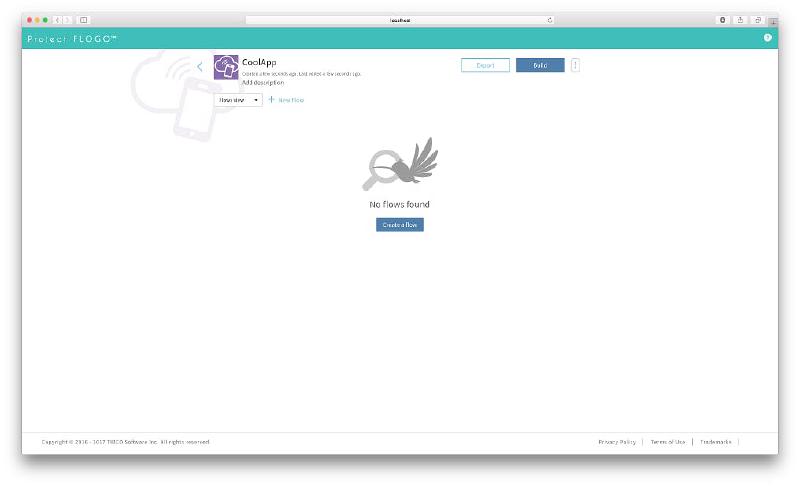
After you click on the flow, you’ll be presented with quite a new look and feel to modelling your flow. The flows and the triggers have been separated so that the flows are now very well aligned with the concept of a function. As a developer you can focus on the business logic without worrying on the infrastructure :)
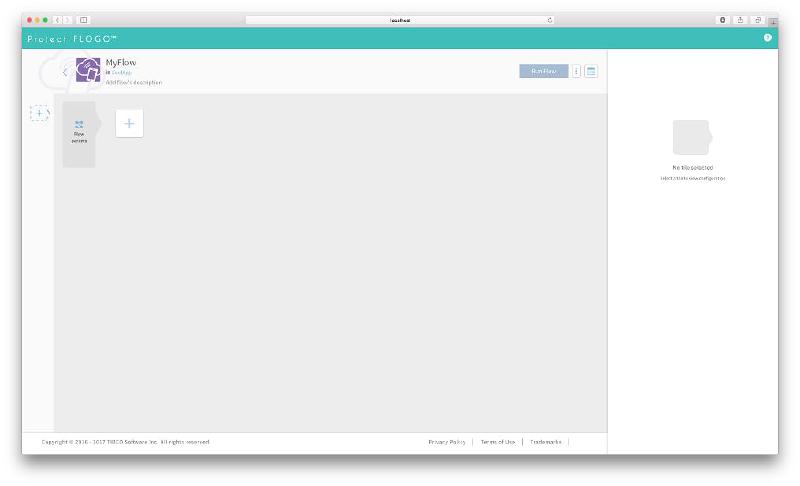
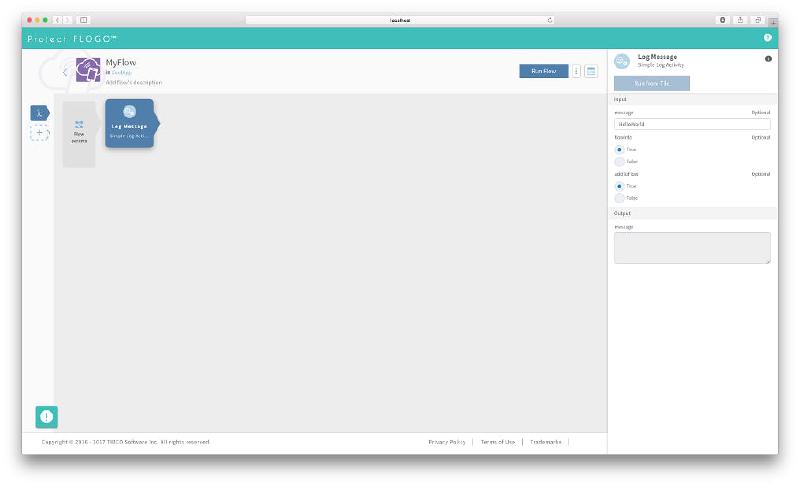
You can click on the ‘+’ sign on the left to add a new trigger ‘Start Flow as a function in Lambda’. This allows your flow to run as a function in Lambda. We won’t need any Flow params for now but we do want to see something in the logs so let’s add a ‘Log Message’ activity
Building for Lambda #
To build an app for Lambda, you’ll need to export the flow from the Web UI first using the ‘Export App’ function. From a terminal window execute
flogo create -f <appname>.json lambdacd lambdaThe above command will create a new folder called ‘lambda’ and go get (pun intended) all the dependencies it needs to run your flows. For Lambda we want to build an application with the configuration embedded in the executable and with a shim to instruct the build process to overwrite the entry point for the application using the Lambda Trigger. The argument to -shimindicates the trigger ID to use as the entry point to the flow (function). The AWS Lambda trigger leverages a makefile to kick off the build process and the build process happens within a docker container (hence docker as a prerequisite) because, at the time of writing, Go plugins (.so files) can only be built on Linux. So to build execute:
flogo build -e -shim start_flow_as_a_function_in_lambdaThis command will pull the docker image ‘eawsy/aws-lambda-go-shim:latest’ locally and build the zip file needed for deployment to AWS Lambda. Once this command finishes successfully the zip file (handler.zip) will be located in your app directory (for example `/path/to/app/lambda/src/lambda/handler.zip`).
Uploading to AWS Lambda #
In the Lambda console you can create a new function and it is important that the runtime is set to ‘Python 2.7’ (the generated shim contains a python executable function that in turn triggers the flow).
As you might have seen during the live streams AWS just announced support for Go, so stay tuned for native triggers as well!
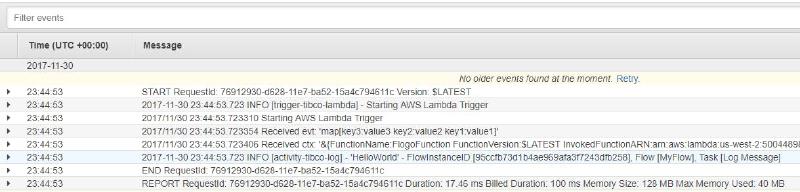
After hitting the create button, you’ll be presented with a brand new Lambda function. From the ‘Code entry type’ dropdown you’ll need to select ‘Upload a .ZIP file’, pick the zip that was just generated and set the Handler to ‘handler.Handle’ (without this you’ll not be able to trigger your flow). You can leave the other defaults as is and hit the orange ‘save’ button. To see your flow in action send a test event and check the CloudWatch logs
Conclusion #
This was a very simple Flogo app running on AWS Lambda, but you can do incredibly cool things using Project Flogo as the microservices framework that runs on Lambda! If you want to get started yourself, just follow the steps above and let us know what you end up building.
Originally published on hackernoon.com