Building microservices is awesome, having them talk to each other is even more awesome! But in today’s world, you can’t be too careful when it comes to sending sensitive data across the wire. Last week I was at PubNub for a Meetup where, together with Jordan Schuetz and Nicholas Grenié, we spoke about cool things you can do with PubNub. One of them is using PubNub as a messaging layer to have your microservices, built with Flogo (duh), talk to each other in a secure way. In this post, I’ll go over the steps to build those microservices and hook them up using PubNub.
What are we building? #
During the Meetup, Jordan and Nicholas showed a demo that used Typeform to build a simple mobile app for opening your front door. Messages flowed from a mobile device, through PubNub, to Slack where a user could click a button to open the door or not. Here we’ll build a simpler version: a microservice that receives messages from PubNub and writes them to a file, keeping a ledger of everyone coming in.
Getting a PubNub account #
You’ll need a PubNub account first. Registration is easy — go to https://dashboard.pubnub.com/login and use “SIGN UP” to create a new account. After signing up, use the big red button to create a new app (the name doesn’t matter, you can change it later). Click on the newly created app and you’ll see a new KeySet. The Publish and Subscriber keys are what you need to connect to PubNub.
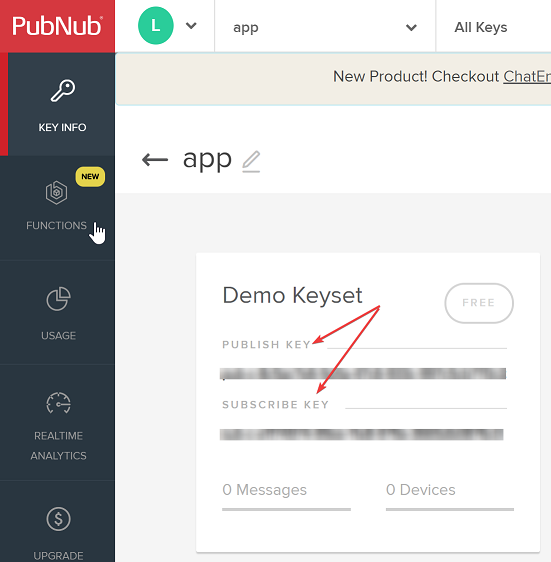
Step 1: Creating a key set
Building your app using a UI #
To get started with Flogo, the only thing you need installed is Docker. Check out this link for a refresher on getting the Flogo Web UI running. Once you have it pulled from Docker Hub and running, open a browser and go to http://localhost:3303/apps.
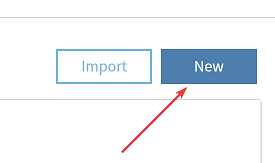
Step 2: Create a new app
Click “New” to create a new microservice and give it a name. Click “Create a Flow”, name it whatever you want, then click on the flow to open the design canvas.
Flogo doesn’t ship with a PubNub trigger out of the box, so I built one using the SDK from the PubNub team. To install it, click the “+” icon on the left side of the screen:
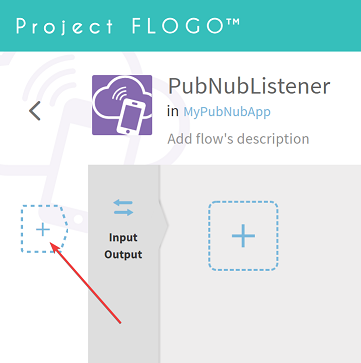
Step 3: Adding a trigger
Click “Install new” and paste “https://github.com/retgits/flogo-components/trigger/pubnubsubscriber” into the input dialog. After installation, click “Receive PubNub messages” to add the trigger to your app.
We want to store the incoming PubNub message in a file. To do that, create an Input parameter by clicking the grey “Input Output” bar. Call the parameter “pubnubmessage”, keep the type as “string”, and click save.
Now configure the trigger to listen for PubNub messages. Click on the trigger and fill in:
- publishKey: The key from PubNub (usually starts with pub-c)
- subscribeKey: The key from PubNub (usually starts with sub-c)
- channel: The channel to listen on (totally up to you)
Then click “Map to flow inputs” to map the PubNub message to the “pubnubmessage” parameter. The parameter will already be selected since it’s the only one — just click “* message” in the Trigger Output section and “save”. Click the “X” on the top-right (no, not your browser…) to close the dialog and go back to the flow.
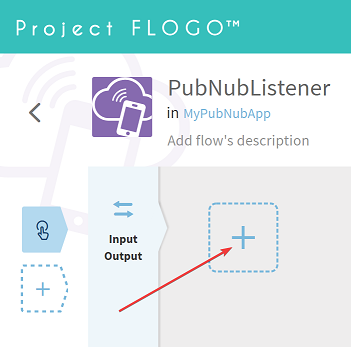
We’ll add two activities: one to log the message and one to write it to a file. Click the large “+” sign to add an activity:
Step 4: Adding activities
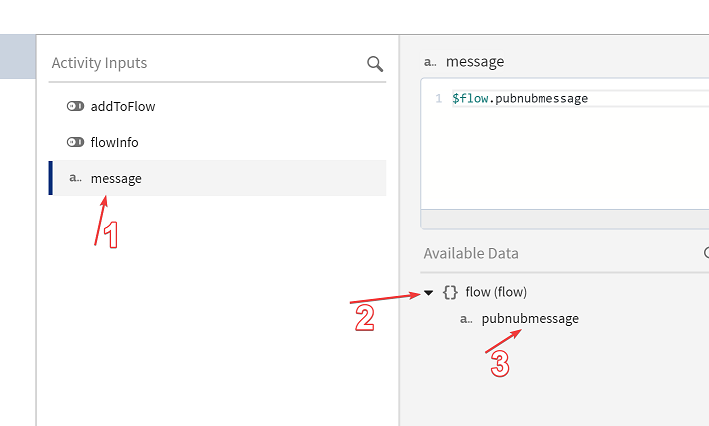
Pick “Log Message” from the activity list on the right. Hover over the new activity to see the cog icon, then hover over that to get the configuration menu. Select “message” in “Activity Inputs” and expand “flow (flow)” to select “pubnubmessage”.
Step 5: Mapping data
Hit “save” and that part is done.
Adding activities #
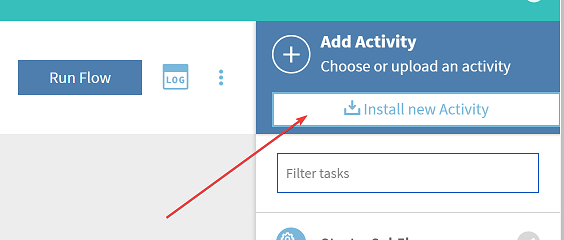
Now we need a file-writing activity. On the main flow screen, click “Install new activity” to get the same install dialog.
Step 6: Adding new activities
Paste “https://github.com/retgits/flogo-components/activity/writetofile” in the dialog. Once installed, add it to your flow and configure it:
- Append: Set to “true” — we want to append, not overwrite
- Content: Expand “flow (flow)” and select “pubnubmessage”
- Create: Set to “true” — create the file if it doesn’t exist
- Filename: Something like “visitors.txt” (include the double quotes)
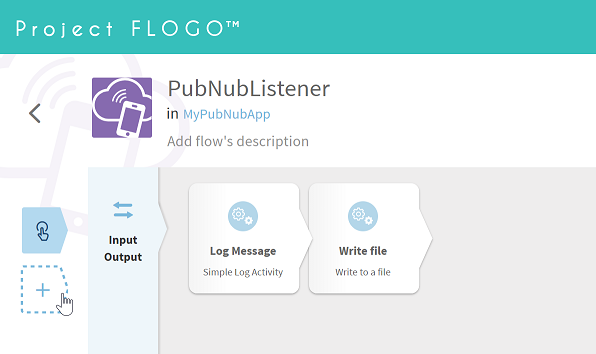
Click “save” and you’re back on the main flow screen. The completed flow looks like this:
A completed flow!
Building an executable #
That’s the entire flow design. To build it, click the “<” button on the top-left to go back to your microservice, then select “Build” and choose your OS. The Flogo Web UI will compile your microservice into a tiny executable (about 12MB).
Let’s test it! #
Run the executable by double-clicking it (Windows) or from a terminal (macOS/Linux). If it starts successfully you’ll see something like: 2018–08–06 21:20:02.867 INFO [engine] — Received status [pubnub.PNConnectedCategory], this is expected for a subscribe, this means there is no error or issue whatsoever
To test it, use the PubNub debug console:
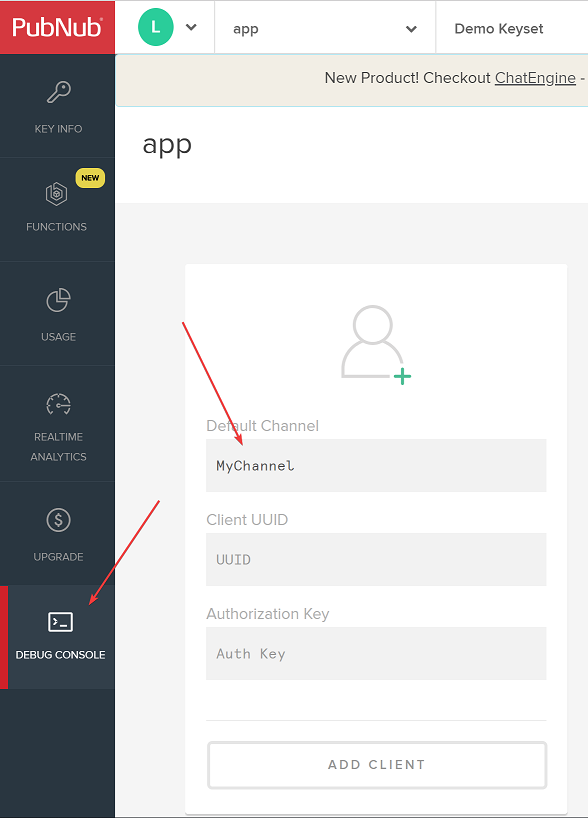
Testing from the PubNub console
In “Default Channel”, type the same channel name you configured in your Flogo app (MyChannel, in this example). Click “ADD CLIENT” to create a client that can send and receive data. The nice thing about PubNub is that you don’t need to open any firewall ports for the debug console and your microservice to communicate. At the bottom of the page you’ll see “{“text”:“Enter Message Here”}” — either hit “SEND” or replace it with something like “{“Hello”:“World”}”. After clicking “SEND”, the message shows up in your microservice’s terminal:
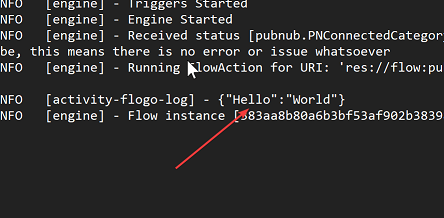
Oh!! A message in a terminal window
And in the log file created alongside your app:
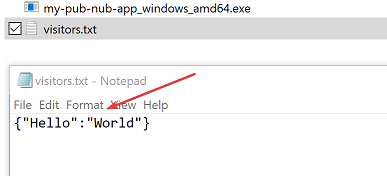
Shows up in Notepad too :D
PubNub gives your microservices a secure communication layer, and Flogo makes building those microservices straightforward — whether you’re writing Go code or designing flows visually through the Web UI. If you’re trying out Flogo and have questions, feel free to join our Gitter channel, create an issue on GitHub or drop me a note on Twitter.